Jam with your bandmates over the internet, each in your own DAW, in time.
Two ways in, and they jam together. The plugin runs inside your DAW (macOS): nothing to route, the tightest clock. The web app runs in Chrome on any computer: nothing to install, except an optional virtual cable to send your DAW's sound.
The plugin
Set up
- Download it, unzip, and copy it into VST3 (the .vst3) or Components (the AU) of ~/Library/Audio/Plug-Ins — for you — or of /Library/Audio/Plug-Ins — for every user of the Mac.
- Put Producerz last on your Master track. It sends what your DAW plays, and adds your bandmates to what you hear.
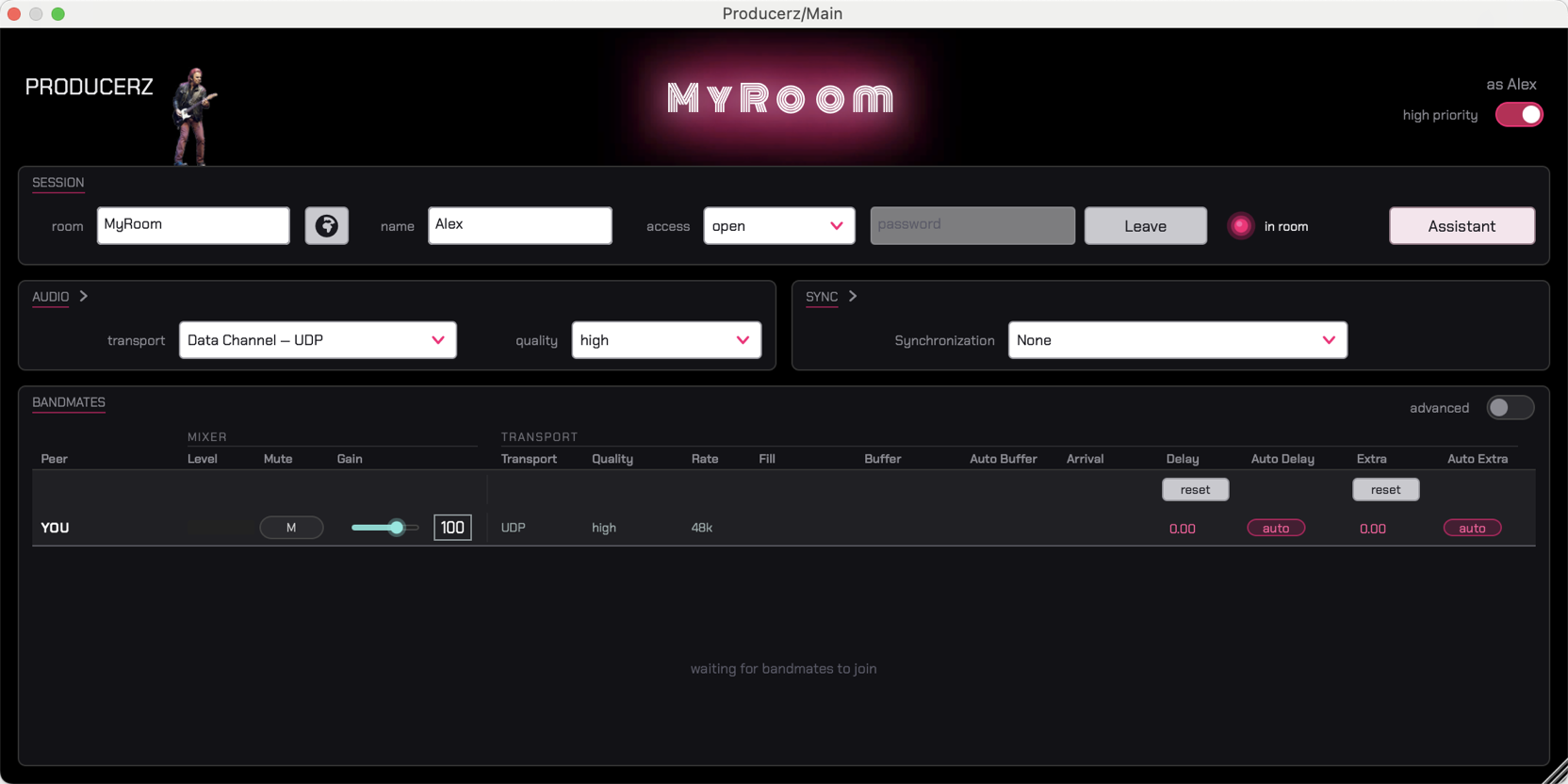
- In the SESSION card: a room, your name,
Join. Everyone who types the same room is in the same jam. The globe button beside the
room shows who is online: click someone to join them.
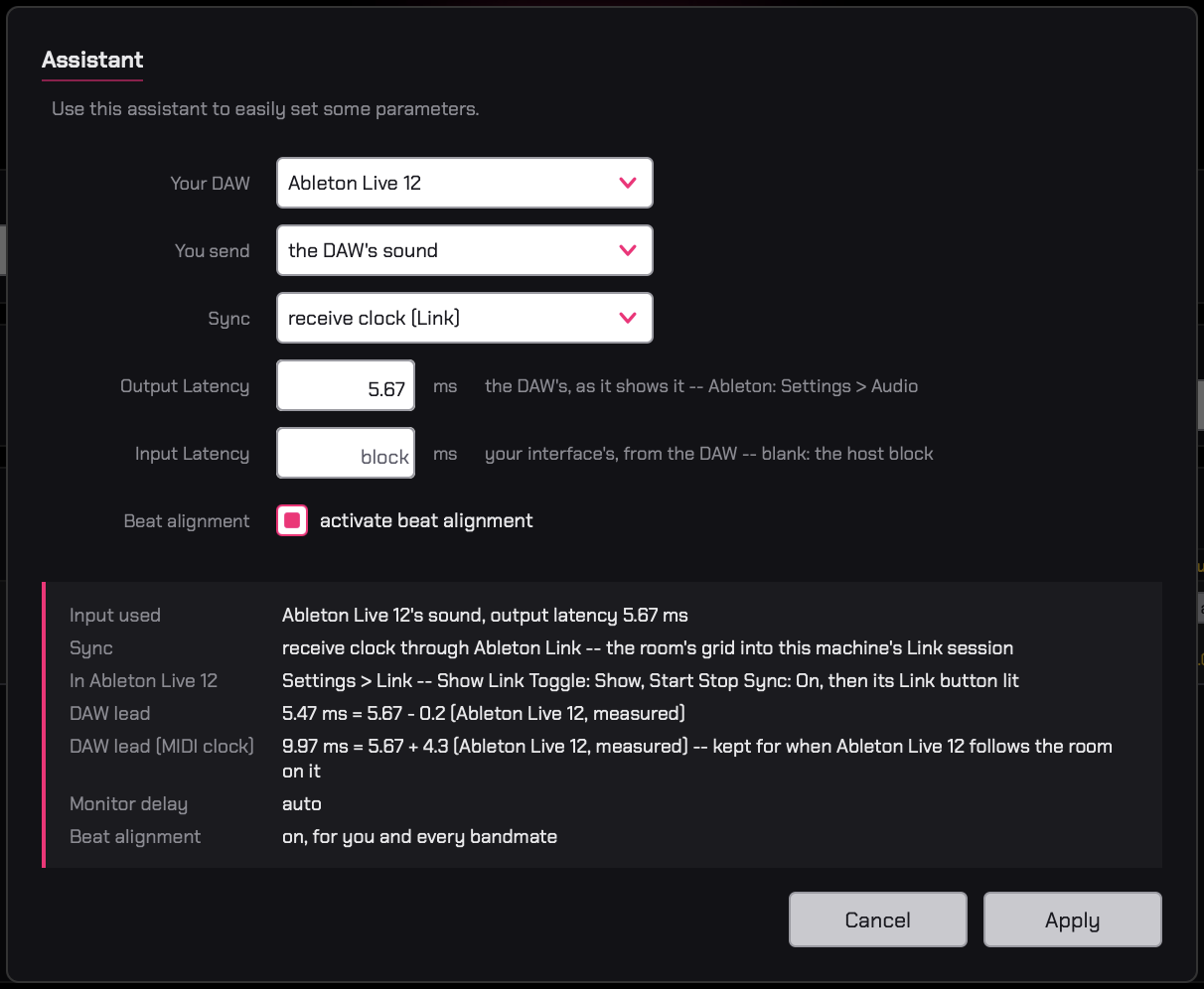
- Click Assistant, answer, Apply:
- Your DAW — recognised for you.
- You send — the DAW's sound, a live input, or a mix of both.
- Sync — how your DAWs stay together: the two examples below. Nothing to sync (a singer, a guitar): none.
- Output Latency — as your DAW shows it (Live: Settings › Audio; Preferences in Live 11).
- Input Latency — your interface's, if you play live. Blank: your DAW's buffer.
- Beat alignment — leave it on: it tightens the groove by listening to it.
Example A — Link everyone on Link
- Everyone: Assistant › Sync: receive clock (Link).
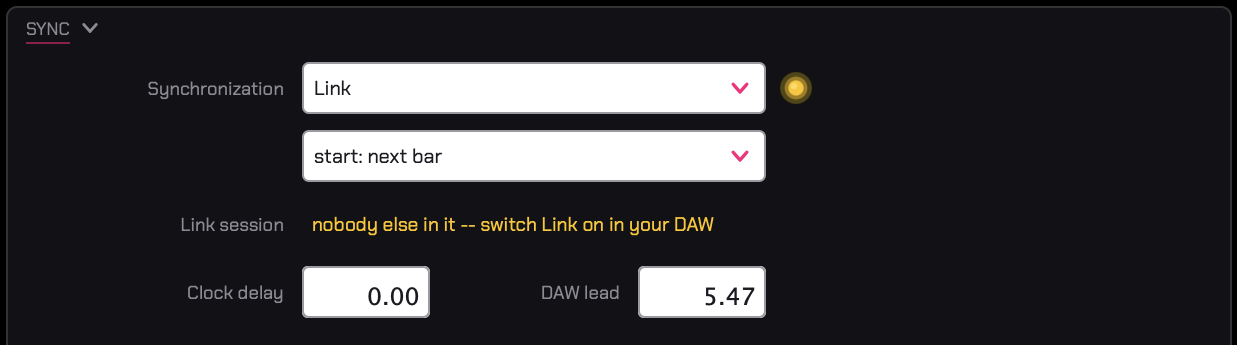
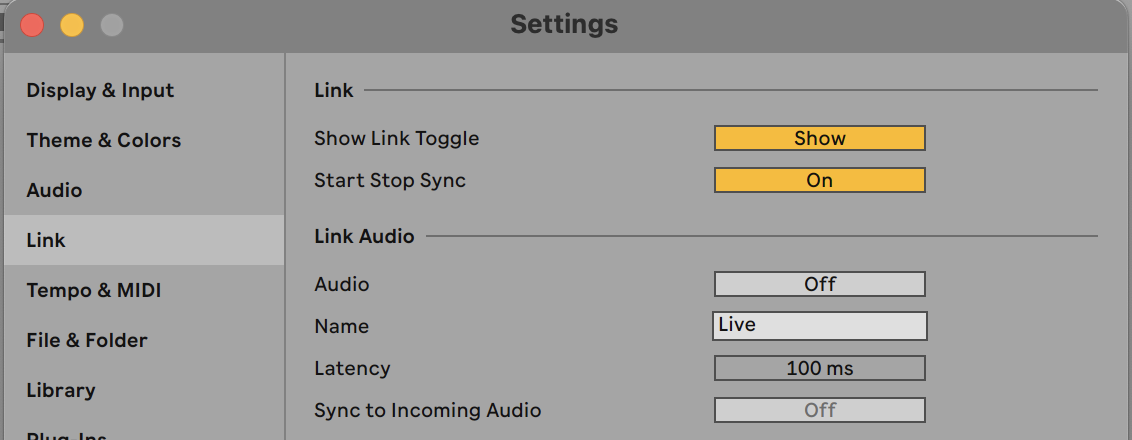
- In Ableton Live: Settings › Link › Show Link Toggle: Show. Then light
Link in the control bar.

- Optional — start and stop together: on the same page, Start Stop
Sync: On. Anyone presses play, every DAW starts on its next bar. Without it, each of you presses play:
your DAW comes in on the next bar, in time.
Nobody has to lead: the last one to change the tempo or press play leads the room. If one of you picks send clock, that DAW leads.
Logic Pro: File › Project Settings › Synchronization › General: Sync Mode Ableton Link, and Transmit and Receive Start/Stop.
Link also links every Link app on your computer and your local network.
Example B — MIDI clock one DAW leads
- The leader: Assistant › Sync: send clock. Nothing else: their DAW's transport is the room's.
- Everyone else: Sync: receive clock (MIDI). The clock comes on the plugin's own MIDI
port, Producerz Clock.
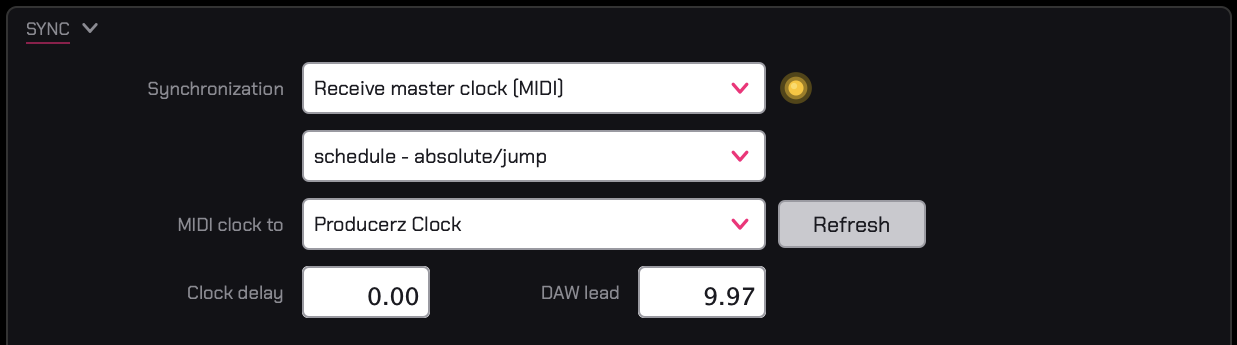
- In Ableton Live: Settings › Tempo & MIDI › Input Ports: Producerz Clock,
Sync ticked.
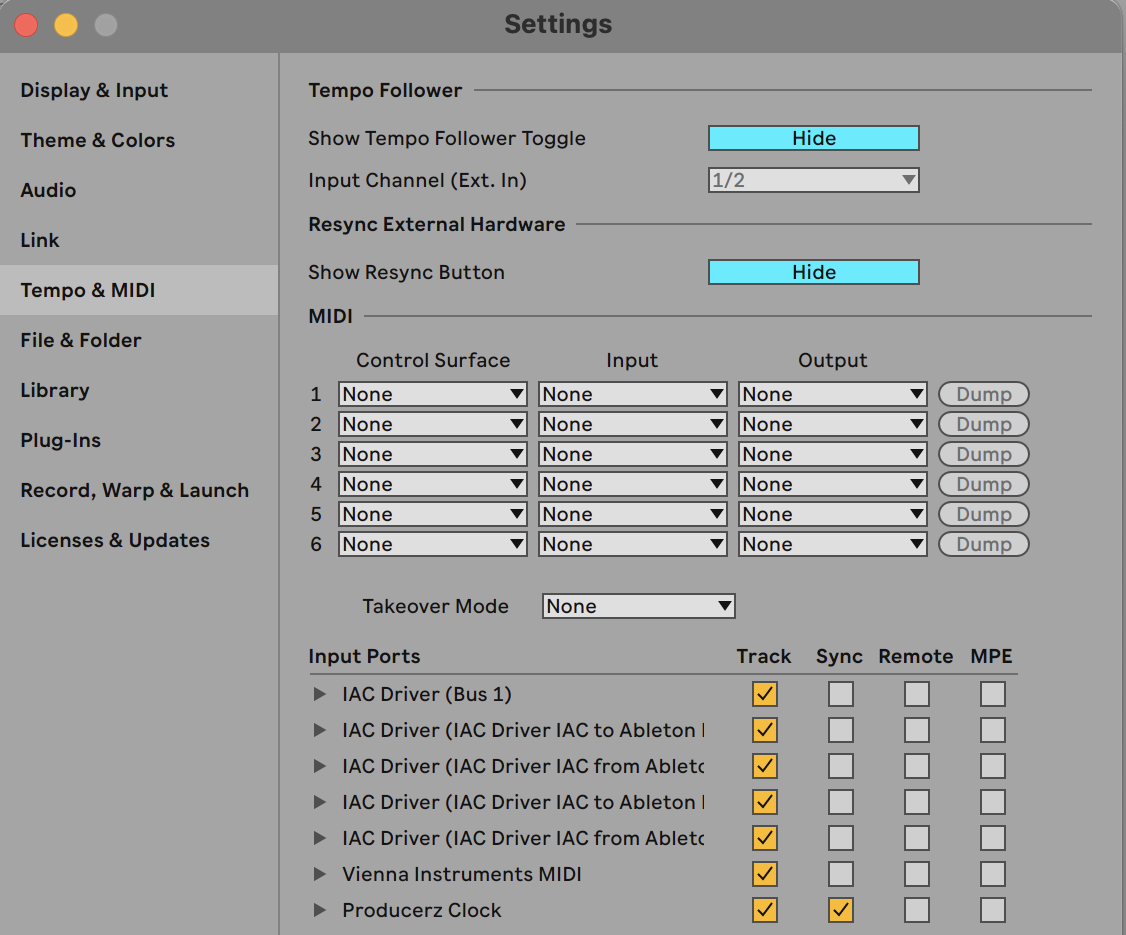
- Then Ext on in the control bar.

- The leader presses play: every DAW starts with it.
Logic Pro follows MIDI Time Code, not MIDI clock: the Assistant sets that for you and its preview lists the three settings to make in Logic. MIDI Time Code carries no tempo: set Logic's to the room's.
Live 11: Preferences › Link, Tempo & MIDI, where Live 12 has Settings › Link and Settings › Tempo & MIDI.
The web app
Set up
- Open producerz.live in a recent Chrome (Firefox works too) and click Start Jamming. Wear headphones.
- Your name, a room, Create/Join Jam. Same room, same jam — or click someone on the globe.
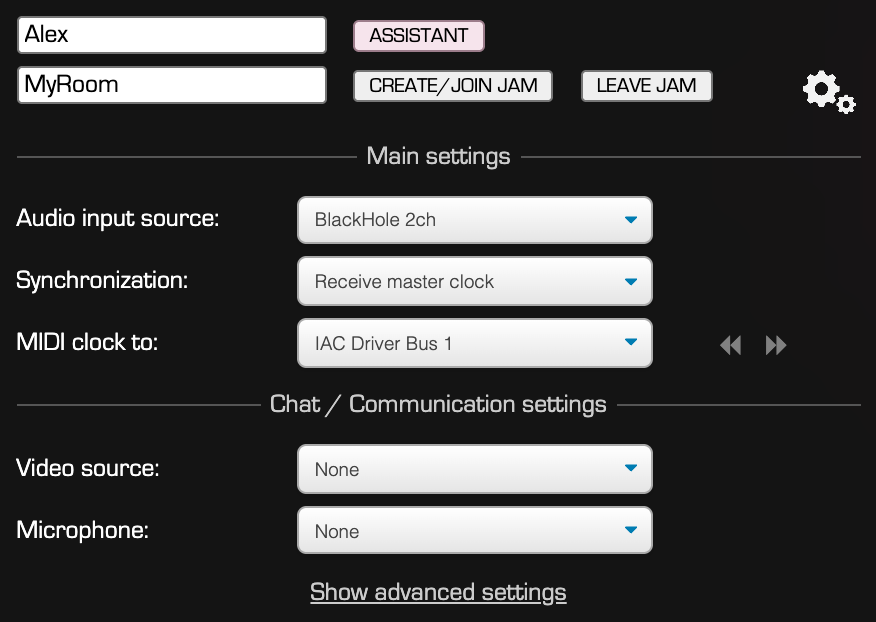
- The gear beside the room opens the settings. Audio input source: your interface or your mic — or BlackHole 2ch to send your DAW (below). The browser asks for the microphone when you open that list.
- Click Assistant, beside your name: your DAW, what you send, the sync, your DAW's Output
Latency (when it follows the clock), beat alignment. Apply.
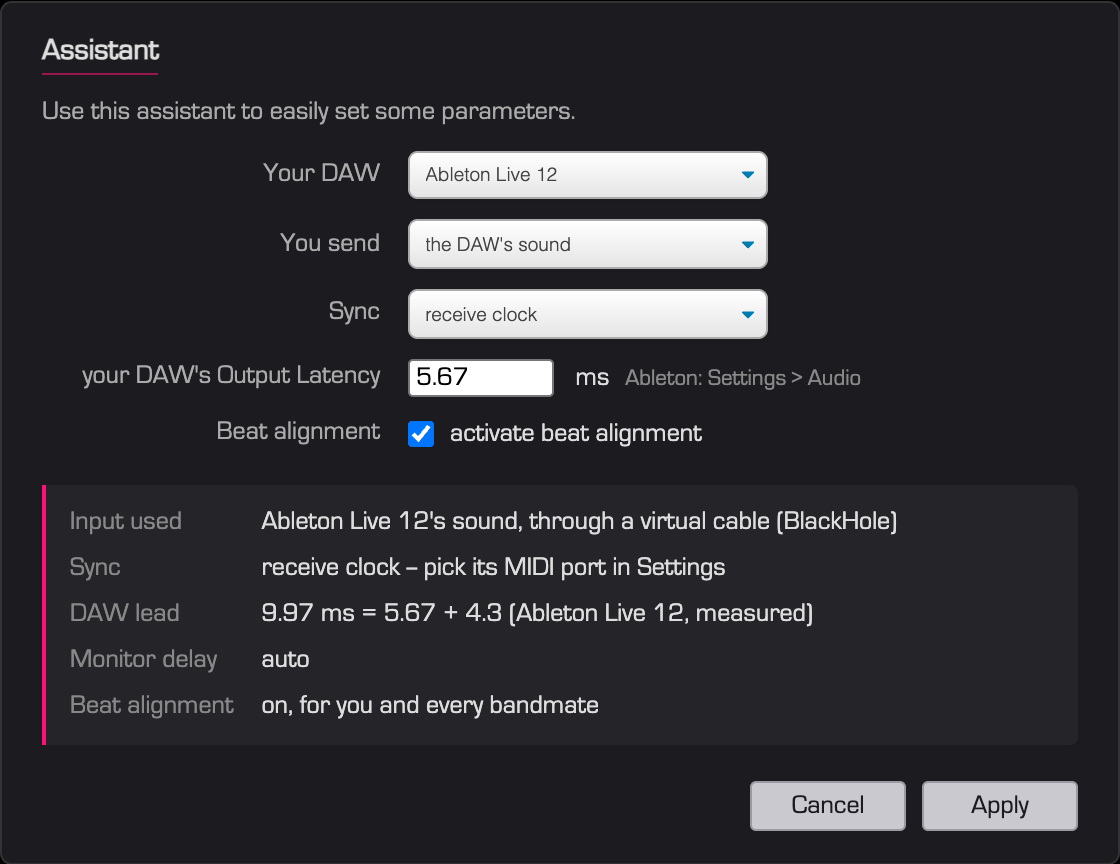
- Playing a live input? Once: Show advanced settings › Input latency › calibrate.
- To talk: Microphone and Video source, under Chat / Communication settings.
MIDI clock with Ableton Live
The web app speaks MIDI clock (no Link; Logic follows MIDI Time Code only — use the plugin in Logic).
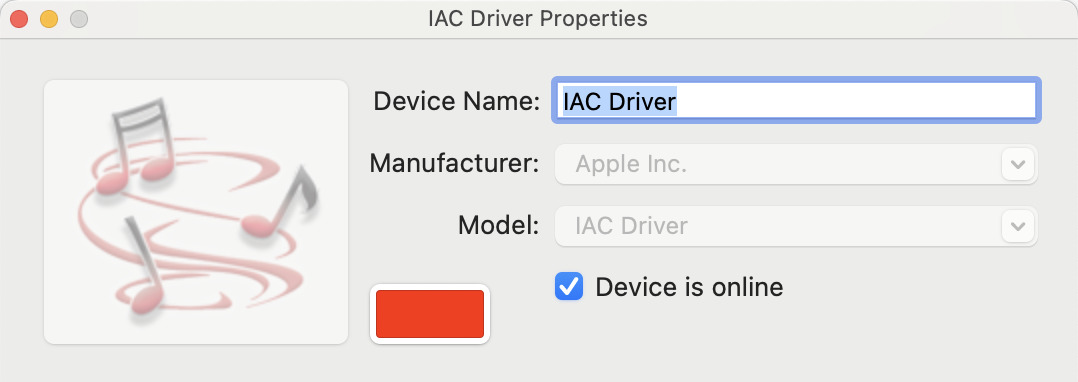
- Once, on your Mac: Audio MIDI Setup › Window › Show MIDI Studio › double-click
IAC Driver › Device is online.
- Your DAW follows the room: Assistant › Sync: receive clock, then MIDI clock to: IAC Driver Bus 1. In Live: Settings › Tempo & MIDI › Input Ports: IAC Driver (Bus 1), Sync ticked; then Ext on.
- Your DAW leads the room: Sync: send clock, then MIDI clock from: IAC Driver Bus 1. In Live: Settings › Tempo & MIDI › Output Ports: IAC Driver (Bus 1), Sync ticked.
On one bus, Sync on for the input or the output, never both: the clock would loop. If one of you has the plugin, let it lead: its clock is exact to the sample. Windows: loopMIDI instead of the IAC Driver.
Your DAW into the web app (BlackHole)
Optional: only to send your DAW's sound. A live instrument or a mic through your interface needs none of this, nor does the plugin. The web app hears an input, not your DAW: a virtual cable makes your DAW's output an input.
- Install BlackHole 2ch (free).
- In your DAW: audio output BlackHole 2ch (Live: Settings › Audio › Audio Output Device). Its input stays your interface.
- On your Mac: System Settings › Sound › Output: your headphones or interface — not BlackHole.
- In the web app: Audio input source BlackHole 2ch; Assistant › You send: the DAW's sound.
- You now hear your DAW through the web app, held back so that it lands in time with the room. Don't also listen to your DAW directly: you would hear yourself early.
Use one sample rate everywhere, 48 kHz at best (Audio MIDI Setup › BlackHole 2ch). Loopback (Rogue Amoeba) works the same way; on Windows, VB-CABLE.
The mixer
Web app: the Mixer tab at the bottom of the page. Plugin: the bandmates card. The same columns in both; hover a header for the details.

| Row | What it is |
|---|---|
| YOU | You, as you hear yourself. Mute: don't hear yourself. Gain: how loud. |
| ALL | Every bandmate at once: apply (each to their own suggestion), reset, catch up. |
| a bandmate | One row each. |
| Columns | What for |
|---|---|
| Level · Mute · Gain | Their volume in your ears. |
| Transport · Quality | What the link to them runs. |
| Fill · Buffer · Auto Buffer | The jitter buffer: audio held to ride out an uneven connection. Fill in amber or red means it runs dry: raise their Buffer, or leave Auto on. |
| Arrival | How late their sound reaches you. |
| Delay · Auto Delay | Holds each player back so the whole room lands together. Leave it on Auto. |
| Extra · Auto Extra | The last tightening, on the groove: from the beat analysis, or by ear. |
- (sugg), in amber: a suggestion, not yet in force. apply takes it once; the Auto pill follows it.
- A value in pink: an Auto is setting it.
- Type a value, or drag up and down (Shift: big steps, Alt: small ones). Editing a value takes that bandmate off Auto.
- Rec exec on your YOU row: listen and record only. Your music is not sent; your mic still is.
- Plugin: the advanced switch on the card shows Ch, Clock, Block, Rec exec, Reord, Ping, and the three (sugg) with their apply. The web app always shows them.
Options
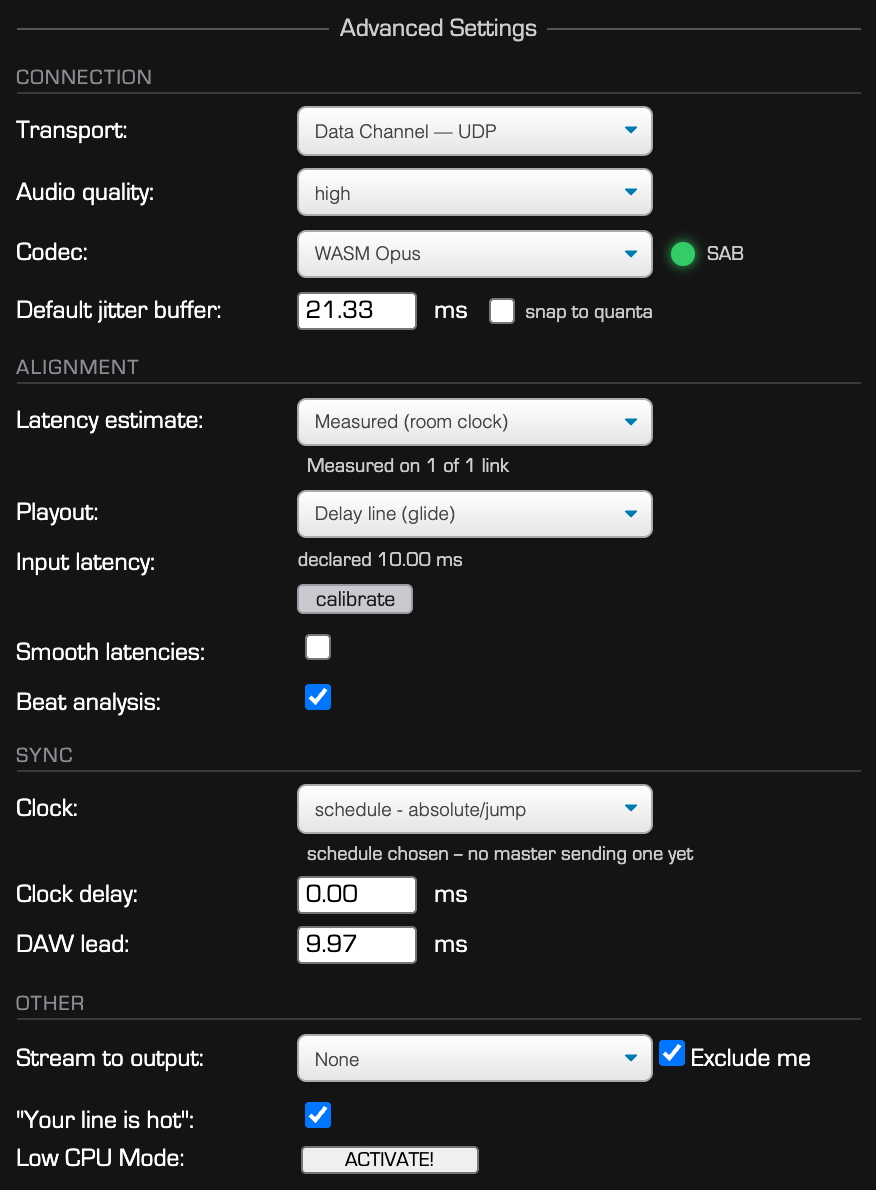
The Assistant sets what matters. Leave the rest as it is unless you have a reason; hover each one for the details. Web app: Show advanced settings. Plugin: click the AUDIO or SYNC title to unfold the cards.
| Option | What for |
|---|---|
| Connection | |
| Transport | Data Channel: the lowest latency. Native RTP: the browser's own path, steadier on a phone or 4G. |
| Quality | The bitrate. Lossless needs a Data Channel and a good connection. |
| Codec web | WASM or WebCodecs: the same Opus. |
| Jitter buffer | The buffer a bandmate starts with (each one's is in the mixer). Snap: steps of 2.67 ms. |
| Reorder plugin | Puts packets that arrive out of order back in order (each bandmate's: Reord). |
| Timing | |
| Latency estimate | How each bandmate's lateness is worked out. Measured (room clock) is the one to use. |
| Playout | Delay line, or Ring playhead: one depth for the whole room. |
| Input latency | Your interface's input delay. Web: calibrate. Plugin: the field beside what you send. |
| What you send plugin | Live input, DAW's sound, or a mix of both: switch it when what you play changes. |
| Beat analysis | Listens to the groove and suggests each Extra. |
| Smooth latencies | For a bursty connection (4G). |
| Clock, when you receive it | |
| Clock | How your DAW follows: schedule - absolute/jump. Leave it. |
| Clock delay · MIDI receive buffer | Leave them as they are. |
| DAW lead | How early your DAW plays against the clock: the Assistant sets it from your Output Latency. |
| Link start plugin | How your DAW joins a start: start: next bar. Leave it. |
| MTC frame rate · MTC start plugin | For Logic: its project's frame rate, and the timecode of bar 1. |
| Other | |
| high priority plugin | Top right: runs the audio threads in real time. Leave it on. |
| Stream to output web | The session to a second output, to record it. Exclude me: without you. |
| "Your line is hot" web | A reminder every 30 minutes that you are on air. |
| Low CPU Mode web | Removes the globe. Reload the page to undo. |
Troubleshooting
| Problem | What to do |
|---|---|
| No sound in the web app | Click Start Jamming. Then check that the tab is not muted (right-click the tab › Unmute site) and that Chrome lets the site play sound: the icon left of the address › Site settings › Sound: Allow. Then your Mac's output and volume. |
| A list says "not allowed" | The microphone, the camera or MIDI was refused. The icon left of the address: allow it, then reload. Still nothing: System Settings › Privacy & Security › Microphone (or Camera): Google Chrome on, and restart Chrome. |
| No BlackHole or IAC in the lists | Install BlackHole, or put the IAC Driver online (above), then reload the page. |
| Crackles, dropouts | In the mixer, that bandmate's Fill runs amber or red: raise their Buffer, or turn Auto Buffer on. On a phone or 4G: Transport Native RTP. |
| You hear yourself twice, or early | You listen to your DAW directly and through Producerz: listen through Producerz only. |
| Your DAW doesn't follow the clock | Live: Ext on, and Sync ticked for the right port (MIDI); Link lit (Link). Nothing until someone sends the clock, or presses play on Link. |
| The DAW doesn't see the plugin | Check the folder (above) and rescan: Live: Settings › Plug-Ins › Rescan. Logic: restart it. |
| Can't join a room | It has a password: type it. RSVP: someone in the room has to let you in. |
| Firefox slows down, its memory climbs | An extension traces the page's WebRTC (Firefox's Media Panel, or another): turn it off and reload. The page warns you when it sees one. |
| "Connection to the server lost" | It reconnects by itself. If it doesn't come back, reload. |